Sleeping Room Component
The sleeping room component makes up the bedroom block of a booking template. This menu allows users to create, modify and delete sleeping rooms.
Breakpoint: 170415 - Sleeping Room Template (Engineering - Groups)
Perform the following steps to create a sleeping room component:
Navigate to Settings à Template Setup à Sleeping Room Component.
Click Create Sleeping Room Component.
Refer to the following table and fill in the details.
|
Field |
Description |
|---|---|
|
Sleeping Room Component Code |
A unique code to represent the sleeping room component. Up to 8 alphanumeric characters are supported. |
|
Sleeping Room Component Name |
A name for the sleeping room component. Up to 50 alphanumeric characters are supported. |
|
List Order |
The position in which the template must appear in the Template drop-down list. |
|
Active |
When enabled, indicates that the comment template is active. If not, the template is not listed in the Template drop-down list. |
|
Room Type |
Select an appropriate room type for the sleeping room component. |
|
Start Night |
The day of the booking from when the sleeping rooms are to be used. For example, if the block is for 10 rooms on the first night and 20 rooms on the second night, the user must create 2 sleeping room components – the start night for the first component (10 rooms) would be 1 and the start night for the second component (20 rooms) would be 2. To avoid creating many room components for the same room type, users can leave this field empty and fill this field after attaching them to a booking. |
|
Number of Nights |
The number of nights for which the rooms are to be blocked. To avoid creating many room components for the same room type, users can leave this field empty and fill this field after attaching them to a booking. |
|
Number of Rooms |
The number of rooms to be blocked for the booking. To avoid creating many room components for the same room type, users can leave this field empty and fill this field after attaching them to a booking. |
|
Room Rate |
The rate of the sleeping rooms. To avoid creating many room components for the same room type, users can leave this field empty and fill this field after attaching them to a booking. |
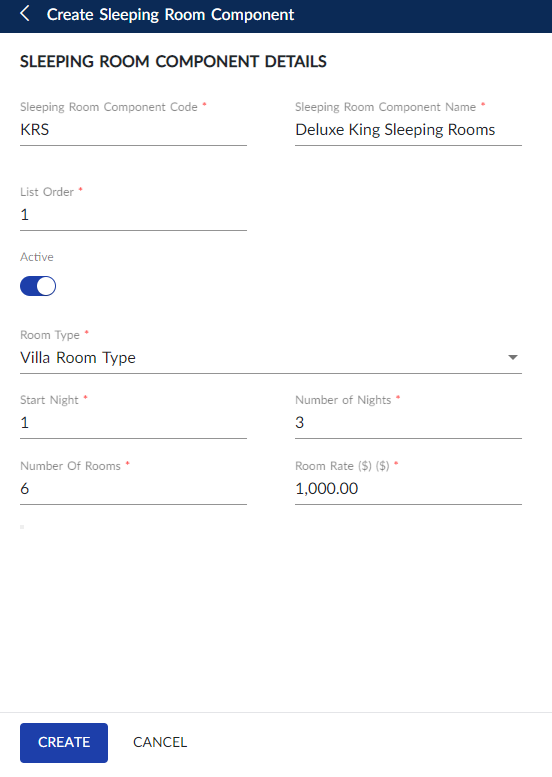
Click Save.
Users can also perform the following actions in the Sleeping Room Component screen:
-
Modify a room component using the Edit icon.
-
Delete a room component using the Delete icon. A room component cannot be deleted when in use.
-
Drag a room component to change positions within the grid using the Drag icon.